


What's new in this firmware update
1. This firmware update is compatible with Soran ASIO USB Audio Driver V6.14.0. After updating the firmware, you may download and install the driver from the Download Page on the corresponding product page of the official website.
Note: The ASIO Driver is exclusively for Windows systems. macOS systems include native Core Audio support and do not require this driver.
2. Fixed the bug affecting the Major and Minor modes of the Harmony effect within the Modulation category.
3. Resolved the malfunction of the external TRS Dual Footswitch on the Tiny Stomp.
4. Updated the Noise Gate settings in select factory presets.
5. Added support for USB HOST functionality, enabling the device to be controlled by a MIDI pedal via USB cable as a USB peripheral.
Note: The Dual Stomp, Dual Stomp Lite, and Tiny Stomp utilize the USB 2.0 High-Speed protocol. Before using MIDI pedal control, ensure your MIDI pedal supports USB HOST functionality and that the USB HOST interface provides sufficient power. If you are uncertain about the power capacity of the USB HOST interface, please power the MIDI pedal separately.

Important Update Information
Firmware updates will not overwrite user presets. To access the updated factory presets, you must manually perform a factory reset after updating the firmware by navigating to System > Factory > Reset.
Firmware Update Procedure
1. Visit https://www.soranaudio.com/Download.html . Navigate to the corresponding product page or go to Support > Download > Products to locate the Dual Stomp, Dual Stomp Lite, or Tiny Stomp. Download the new firmware from the Firmware section. The Device Firmware Updater (DFU) is included in the firmware archive.
2. Extract or open the appropriate file for your operating system (.zip for Windows, .dmg for macOS) and launch the Device Firmware Updater.
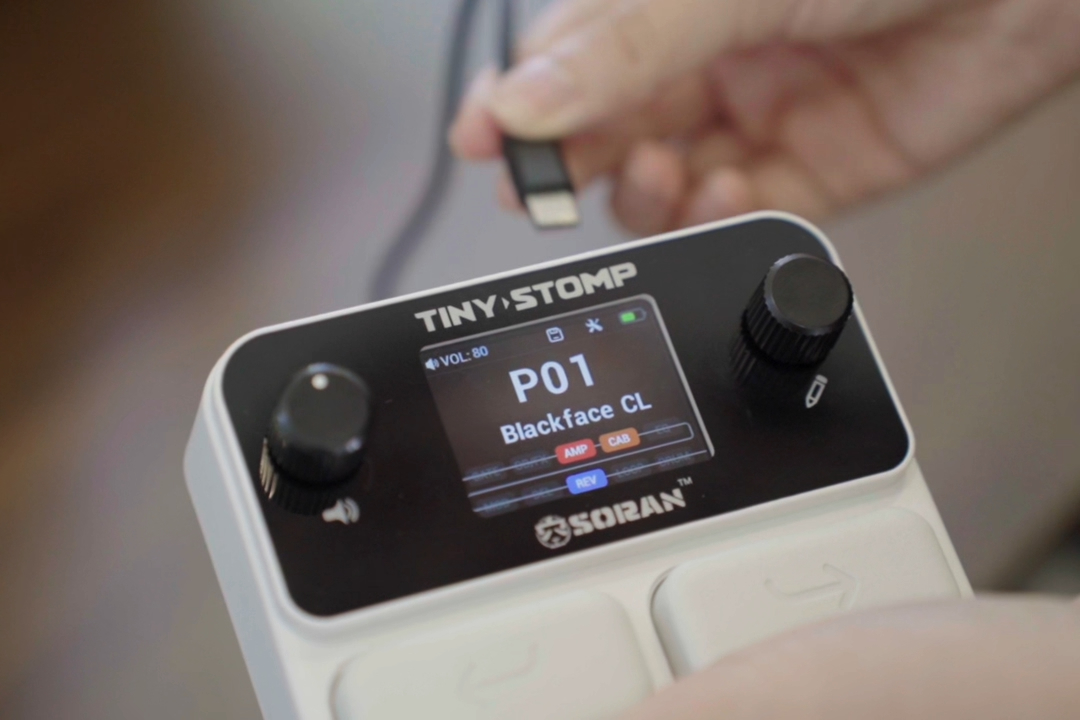
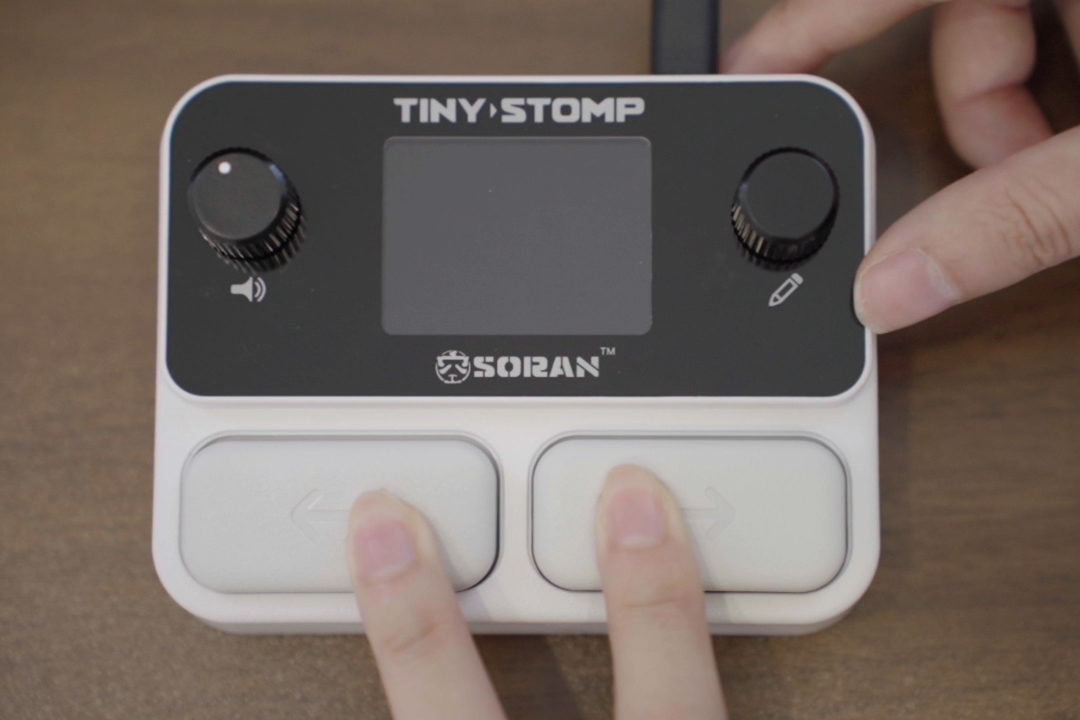
3. Connect the factory-supplied USB cable between your computer and the effects pedal. Press and hold both footswitches simultaneously while powering on the device. The pedal will enter Device Firmware Update mode, and the DFU Software will display a corresponding confirmation prompt.
4. Click "Start Update" to begin the firmware upgrade.
Note: Do not disconnect the USB cable during the upgrade process. Avoid moving your computer or the effects pedal to ensure a stable and uninterrupted upgrade.
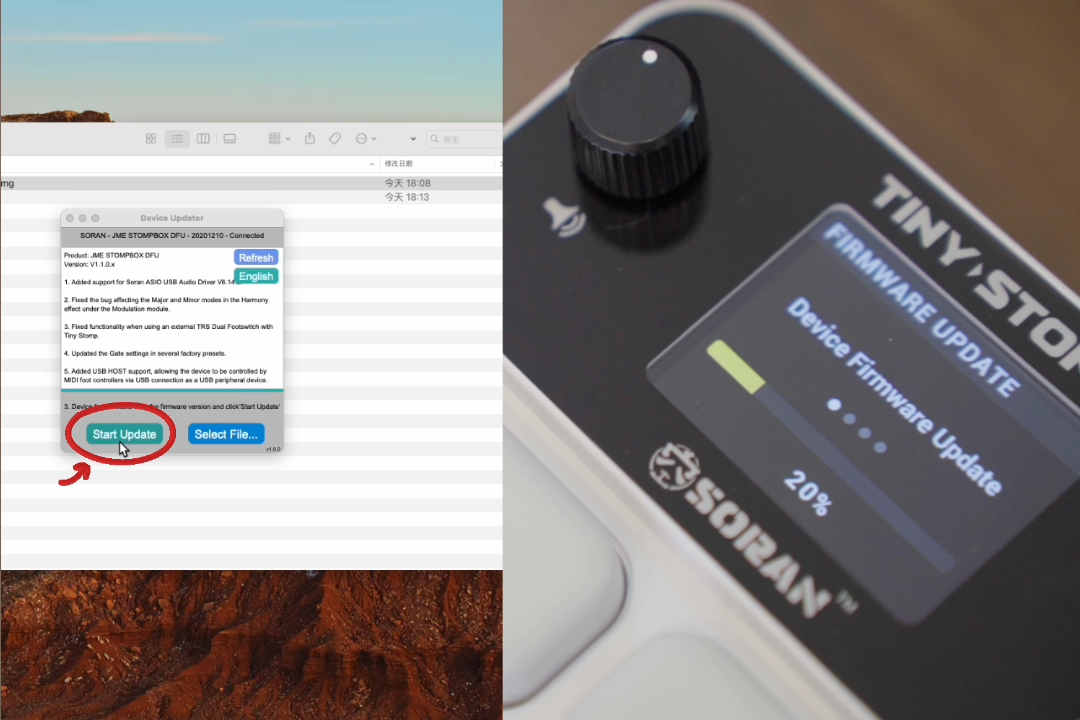
5. Once the upgrade is complete, restart the effects pedal. You may verify the firmware version V1.1.1 on the startup screen or by navigating to System > Factory > Reset.